Friday, June 02, 2006

SDK's and Emulator for the Compact framework

I Mentioned earlier that there is no emulator available for the CF. But now there is. Microsoft has released the Mobile 5 Emulator as a standalone package. Here it is:
Standalone Device Emulator 1.0 with Windows Mobile OS Images.

After installing it you can run it like any other program from Programs in your Start Menu. The first time you start it, select PocketPC, Coldboot. Note that it will take almost a minute to boot for the first time, so be patient.
Unfortunately this version does not have the Compact Framework 2.0 installed, so we'll have to do that manually:
- First get the CompactFramework Installation file (NETCFSetupv2.msi)
- Make sure you have ActiveSync 4.0 or higher installed.
- Open the 'Device Emulator Manager' (it's in the same section of the Programs menu where you just started the PocketPC emulator). If the PocketPC emulator is running you will see it in the Device Manager screen as a button with a green arrow, followed by de Device ID.
- Select it, and open the Actions menu. Select 'Cradle'. This is the same as connecting an actual PocketPC to your PC by putting it in the cradle or docking station. Usually ActiveSync will now pop-up and connect, but if it does not, just open ActiveSync,and select 'File->Get Connected'.
The Emulator now behaves exactly like a real device connected through ActiveSync.
- Now start the Compact Framework Installation (just double click on the 'NETCFSetupv2.msi' file and the installation will start automatically. It will first extract the installation to your harddisk, then start up ActiveSync, and upload the installation to the emulator. The emulator will start the installation procedure.
Now pay attention : when the installation is finished on the emulator DO NOT LET IT RESTART. If you do, it will perform a coldboot, and your installation is gone. Select 'File->Save State and Exit' instead. The whole ROM image, including hte CF 2.0 installation will now be saved. Next time you start the emulator, start the 'PocketPC - Savestate' and you'll have a Compact Framework 2.0 enabled Pocket PC at your desktop.

What's also nice to have when developing is theWindows Mobile 5.0 SDK for Pocket PC.
This contains all kind of usefull samples, images, projects and also the Windows.WindowsMobile namespaces. Now when you try to install it you will notice it first checks for the presence of Visual Studio, and if that's not available, it refuses to install :-(
So we just have to unpack the .msi file using the
'LessMSIerable' utility from http://blogs.pingpoet.com/ :-) I'm not 100% sure this is legal, but since it's so easy it would be foolish to forbid it.

Saturday, May 27, 2006

C# programming for the Compact Framework part 2

If you followed the steps from part 1 you've created a .NET CF program that runs on your PocketPC. No doubt you also tried to add functionality to the basic program, and soon found out that it isn't all good clean fun.
First, whenever you add a control from the sidebar, the IDE automatically adds a new reference to the required .NET assembly so the compiler complains about 'duplicates' and will not compile untill you remove the reference. This is not a real big problem, just don't forget to remove it before you compile. Also when you add controls by just copying them from the form (select the control you need, press [Ctrl]C and [Ctrl]V to add a copy) the IDE does not add a new reference.
Second, and this is worse, whenever you change something on the form, the IDE re-creates the form.designer.cs file, and all the CF-incompatible lines you just removed are back. So I created a little program (in C# ofcourse) that walks throught all .designer. files in a directory, finds lines with unsupported CF statements and turns them into comment. You can find it here.
Actually it loads a file named 'Exclude.txt' that contains the unsupported statements, and checks every line in the source code to see if it contains on of the words in the Exclude-file. If a match is found AND the source code line is not already a comment, the line is turned into a comment by adding '//' at the beginning of the line. I agree it's a rather crude solution, but it works fine. So if we enter this program in the 'Project->Project Options->Build Events' page as the 'Pre-build event', it is executed every time when we compile our code from the IDE, and there will be no error messages like 'System.Windows.Form.ComponentX does not contain a definition for MethodY'
Since the CFPreprocessor program is very basic, you should take care of the following:
- If the pre-build event is configured as shown above, the CFPreProcessor.exe file must be in the 'bin\Debug' directory of the project to be compiled, because this is the default directory when the compiler starts. It's probably better specify the full path (E.G. C:\CF\CFPreprocessor.exe)
- There are no warning messages in the IDE when the program runs or fails. It just writes a 'CFPreprocessor.log' file with each run, so if you think something is going wrong, just open this file to see what happened.
- Just add things to the Exclude.txt file if you run into another unsupported feature. I first considered it an option create a full list of unsupported methods from the 'Compact Framework Helpfile', but I think the program will soon get very slow, since it will have to check every line of code against every line in the Exclude file. I think it is best to keep this file as short as possible.

Another issue when programming for the CF is that it is really 'compact', so apart from the unsupported methods there are also a lot of controls that are not supported at all. In general you should stick to the the very basic Windows controls like Button, TextBox, Label, CheckBox, ComboBox etc. Anything more advanced or fancy, like MaskedTextBox, RichTextBox, CheckedListBox is probably not suported. It is good practice to check the .NET help first before entering any control, and see if it is supported.

Thursday, May 25, 2006

C# programming for the Compact Framework


As always when you want to try a new technique or programming language, it works best if you have a goal. Just writing 'a program' , or re-typing exercises from books seldom gets me excited. So when I found out that .NET 2.0 finally contains a native Serial port control, I decided to create a terminal program for use on the Pocket PC. Since I often work with instruments that send (binary) data on a serial port, it's someting I wanted to have for a long time.
As mentioned before, the SharpDevelop 2.0 IDE is a very good environment for creating C# programs, but unfortunately it has no direct support for the Compact Framework. Yet it's not too dificult to get a simple Windos Forms application running on a Pocket PC with CF 2.0 installed.
First you must have the CF2.0 installed on your pc, and you should also install the Windows Mobile 5.0 SDK. If you did this, you can find the CF assemblies in: C:\Program Files\Microsoft.NET\SDK\CompactFramework\v2.0\WindowsCE
(At least, that's where they are on my computer.)
For convenience you can copy them to a root folder like C:\CF (like me), but you can also keep them where they are.
For the first try, keep it simple. Just create a new Windows Application from the File->New->Solution menu. Name it something like 'CFTest'. The designer presents an empty form, that's probably too large to fit on the screen of the Pocket PC, so resize it to 240 x 320 (the standard screen resolution for a Pocket PC) and place a button and label on it. You can also add an event handler to the button that for example changes the text of the label so you can check if the program is actually working.
Now you can compile and run it, just to see if this standard program works.
If so, it's time to change the settings so we can compile the same program for the CF.
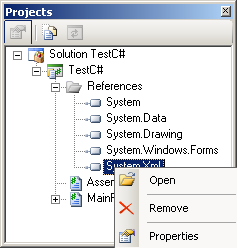
First open the View->Projects window, and open the 'References' section on the project tree. This will contain the default assembly references for a standard windows project. When you right-click on each assembly you get the 'Open, Remove, Properties' option as show here. Since all these references now point to the 'full' framework versions, you must delete them from the list. Click on each item, and choose 'Remove' untill the list is empty. Now right click the 'References', and select 'Add reference'. In the 'Add Reference' window, select the '.NET Assembly Browser' tab and click 'Browse'. Navigate to the folder with the CF assemblies (as shown above), and select all files with the .DLL extension. After closing the assembly browser by clicking OK, the Reference section in your project view should now contain only references to the CF assemblies. Note that one of the dll's is named 'mscorlib.dll'. This is the core library of the framework, and you might have noticed that it was not referenced in the standard project. This is because the compiler references this library automatically since it is always required for a .NET application. Unfortunately this means it always uses the default mscorlib.dll, which on a desktop computer, always belongs to the standard .NET library. To stop this unwanted behaviour we have to change the compile settings. Select Project->Project Options, and select the 'Compiling' tab. Here you can (and must) select [x]Do not reference mscorlib.dll.
Now it's time to Run the program again, just to see that we end up with a disencouraging long list of errors. But this is actually the nice part. All errors are related to functions or properties that are unavailable in the Compact Framework, and these lines can just be removed (or better yet, commented out) without breaking the basic functionality of the program. So just click on each line of the error list to take you to the 'unsupported' line, and turn this line into a comment. Yes, even the [STAThread] directive at the beginning of the main program can be removed.
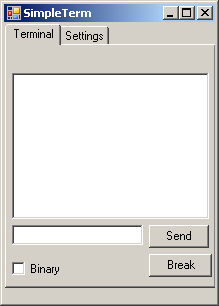
Now Run the program again, et voila.. it works. It actually still looks identical to the first run. But now you can copy the executable you just created to a Pocket PC, and it will run exactly like on your desktop.

Thursday, April 27, 2006

Free C# programming for the PocketPC

The previous posting on this subject was actually an excerpt from my C-Scope website I've written a year ago. Thoug still valid, things have changed since then. (Ofcourse, you should say. Things change on a daily basis, and a year is 365 days, so..)
First there is the release of .NET 2.0, and .NET CF 2.0. The .NET CF is part of the new Windows Mobile 5 ,but you can download and install the free distributable on any Pocket PC. Drawback is that there is no freely available Windows Mobile 5 emulator anymore, so you need an actual device to test your applications. Good news is that a compiled .NET CF application will also run on your desktop, so it's not a major issue .
Second there is the new, updated release of SharpDevelop, the excellent freeware C# IDE. that now supports (and even requires) .NET 2.0. I've just started to use it, and it's amazingly easy to create a .NET Windows forms application that runs on your desktop, and with some modifications it also runs on my Pocket PC. Next time I'll tell how.

Free programming for the Pocket PC

Pocket PC,s are hot. Prices of Pocket PC's are falling, and with the car navigation as 'killer application' the number of users is increasing rapidly. So programming for the Windows Mobile platform is getting more important. And let's face it: it's fun two write programs that you without carrying a bulky laptop.

There are a few possibilities to write Pocket PC software. The 'easiest' way is to buy the the complete Visual Studio .NET suite. This has all the bells and whistles required to write Pocket PC applications in using Visual C or the .NET Compact Framework. Unfortunately it's also rather expensive...
Fortunately Microsoft also tries to promote the platform by giving away the free Embedded VisualC SDK. Though a little bit 'outdated' in appearance, it's a fully functional IDE , with compiler, debugger and emulator for writing MFC-based C++ code. So far I've written all my software using EVC 3 and 4 and it works quite satisfactory. It's probably still the most efficient way to write Pocket PC programs because the C++ language is very close to the Windows API. Unfortunately it's also difficult to master, and the learning curve is steep and long.

It should be easier to use the .NET Compact Framework, which is standard on Windows Mobile 2003 and higher. Unfortunately the only 'supported' way to write .NET CF programs is by using Visual Studio. So if you're not that rich you'll have to go the unsupported way:

Programming the .NET Compact Framework without Visual Studio

Although Microsoft insists that you can not compile .NET Compact Framework (.NET CF) applications without owning Visual Studio .NET, it is in fact possible. Check out Ward's article at http://www.ward.nu/computer/teletekst/compile.html on how to do this.

Friday, April 21, 2006

Welcome to my life

Welcome. I suppose this is how it should start. Read on if you're interested, skip it if you're not (there are plenty of words on the web that are arranged in a more appealing way)